If you're a collector of digital things—be they movies, video clips, photographs, PDFs or whatever else you can think of—Usher will help you get the most out of your collection. Usher makes it easy to organize, browse, and view all of your media files.
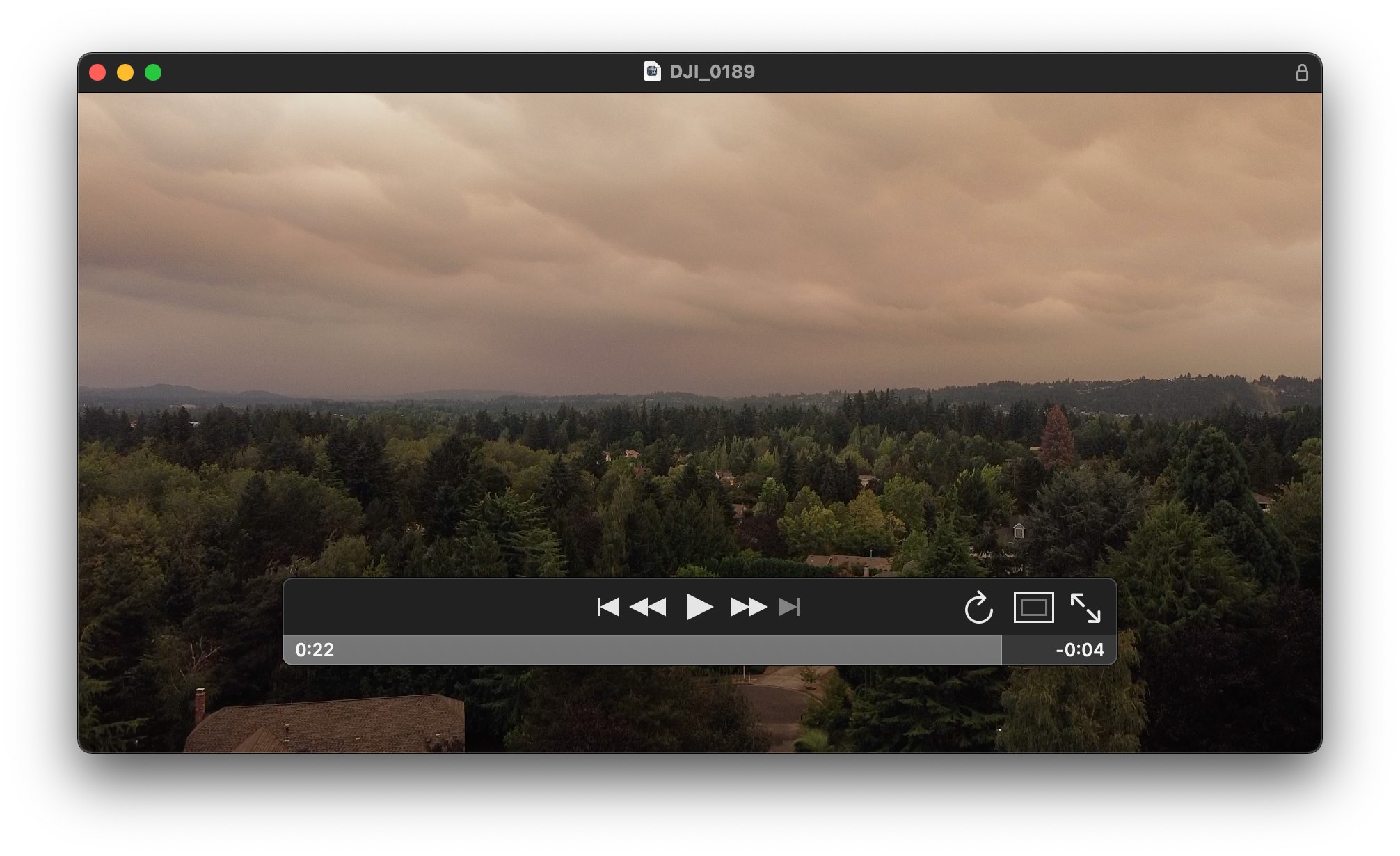
Watch Usher uses Apple's QuickTime technology, so it can play back any media file that you can watch in QuickTime Player. For media files that aren't directly supported by QuickTime, Usher allows you to choose an external player, such as IINA or VLC.
You can watch video in Usher's main window, in a separate window, or in full-screen mode. In the first two modes, you can choose between the QuickTime-style hovering controls, or fixed controls outside the playback area.
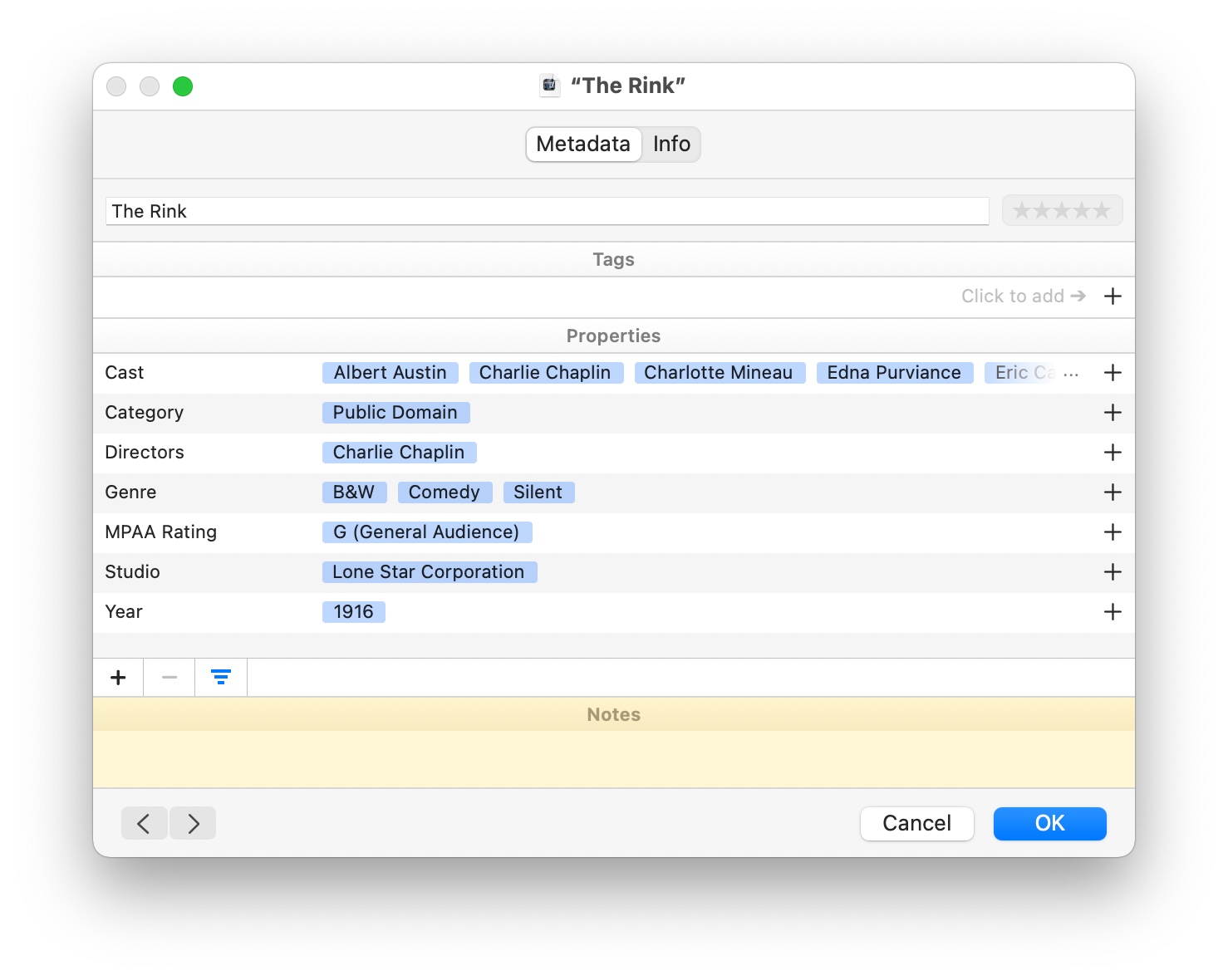
Identify Once your collection has reached a certain size, watching becomes difficult without some way of identifying individual media files…and this task is one of Usher's strengths.
You can use Tags to help categorize movies, much like you use keywords in Photos to organize photos. Beyond Tags, Usher's Properties are multiple-value fields that can, for instance, store the entire cast for a movie in one Property. If your media files have existing metadata, such as Cast or Director, from a tool such as Subler, Usher can read those fields, too.
Usher also includes a free-form auto-expanding Notes field, so if you like to keep notes about your media files, you can store a near-limitless amount of text for each one. This text is fully searchable, too, meaning you can use the Notes field in Smart Playlists.
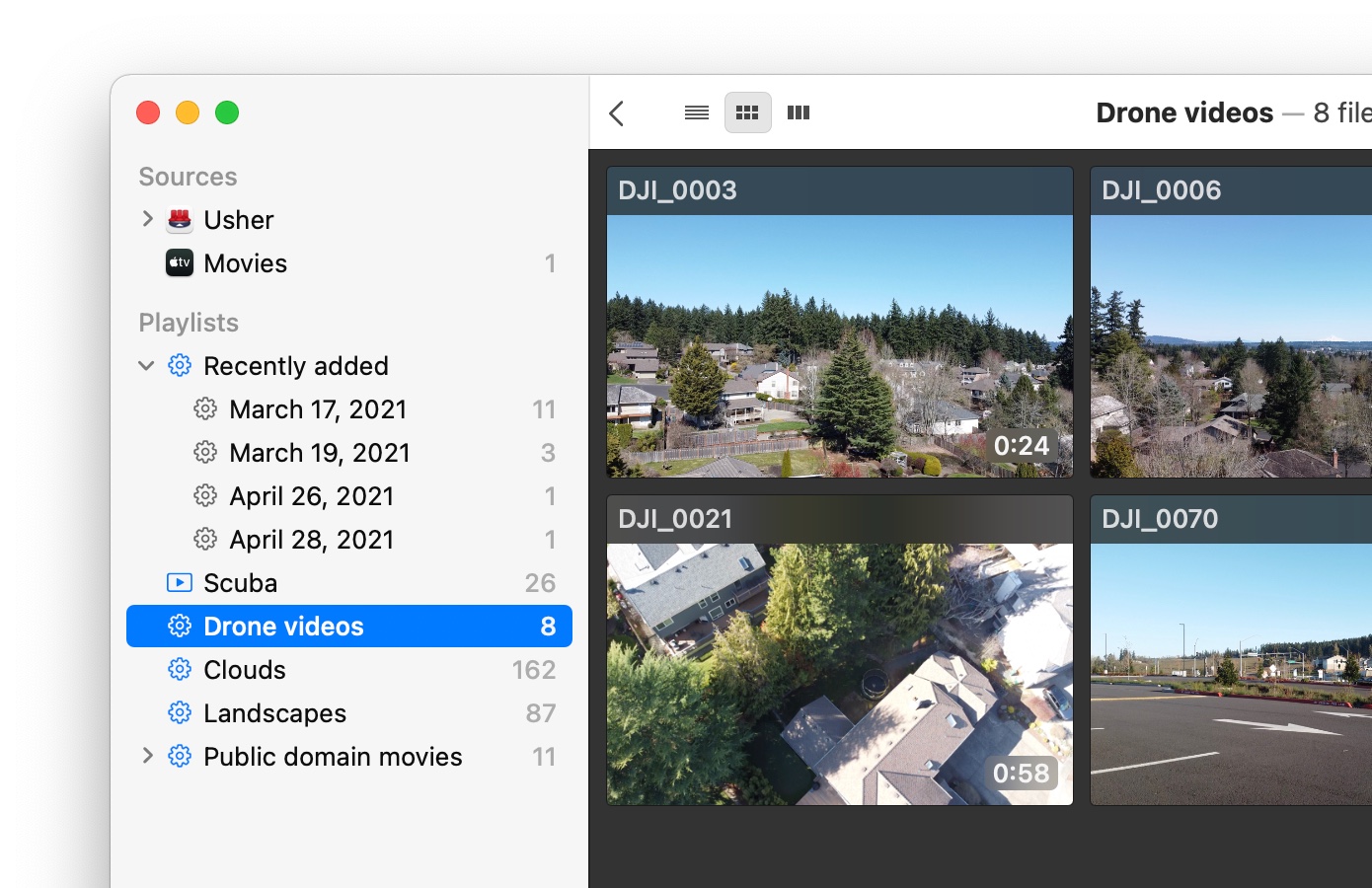
Organize For the ultimate in organization, you can sort your media files into folders, and/or use playlists and Smart Playlists to create filtered lists based on Tags, Properties, and other values like last playback date.
Playlists and Smart Playlists in Usher work just like they do in Music and Photos, so if you're comfortable there, you'll be right at home in Usher. But the best part is that Smart Playlists can even be automatically subdivided by metadata fields you select, as seen in the Recently Added playlist in the screenshot.
With the power of Smart Playlists and subdivisions, your media file collection can be as organized as you want it to be—and as you add new media files and metadata, those files will automatically be properly organized.
Usher has three main view modes: List mode shows your video files as one-line entries with multiple columns of metadata; Preview mode shows a preview frame from each file; and Cover mode, which shows the cover image for each video file.
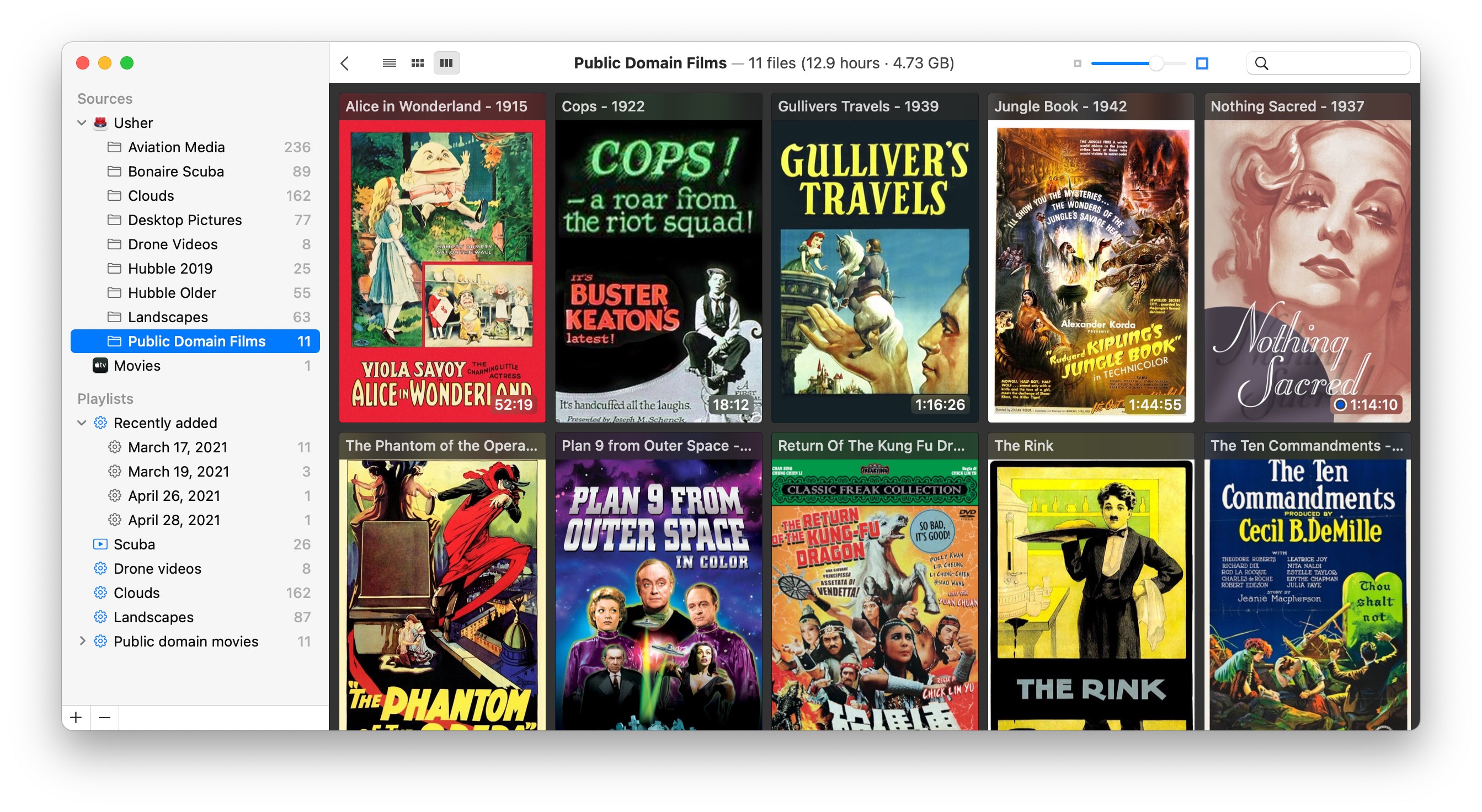
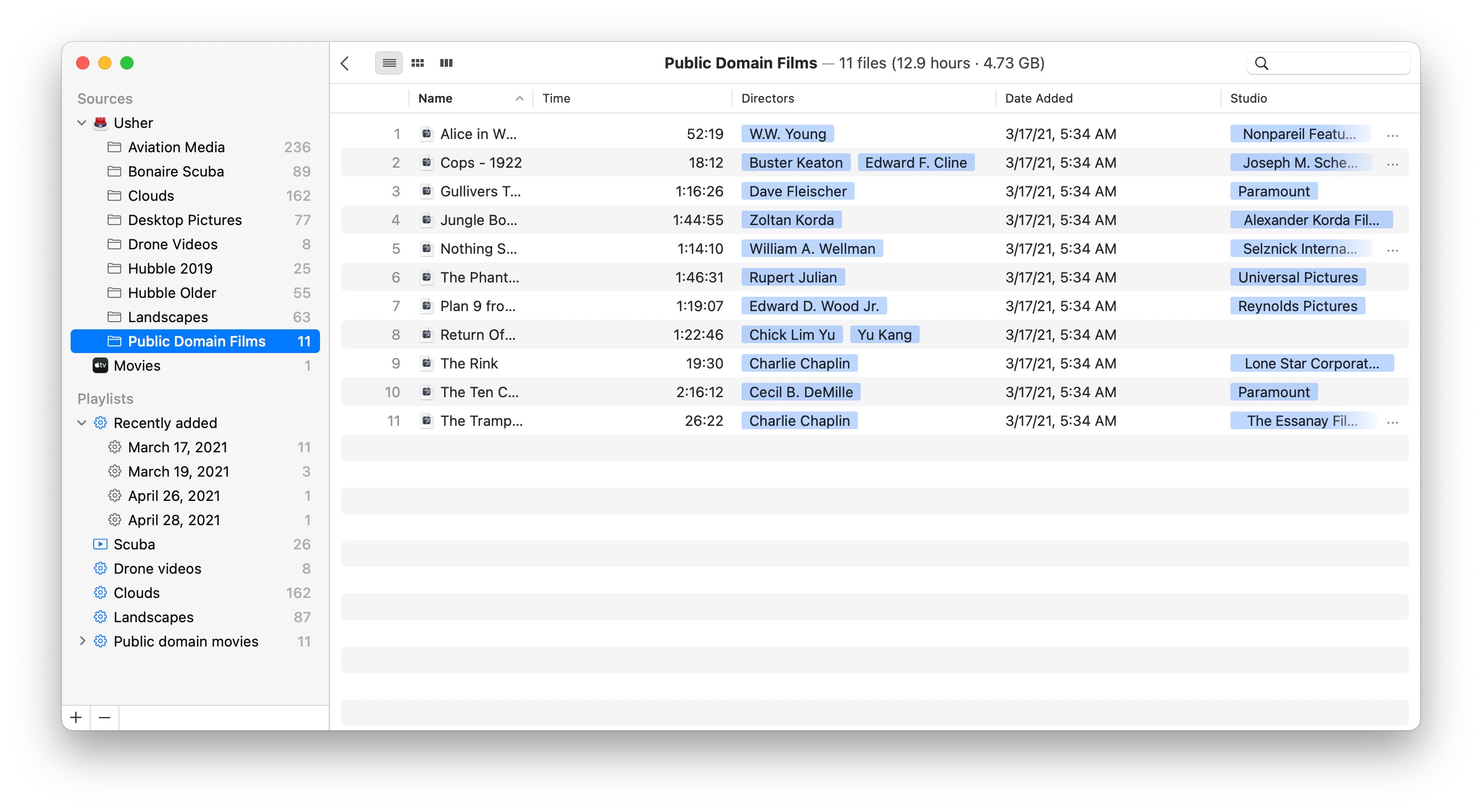
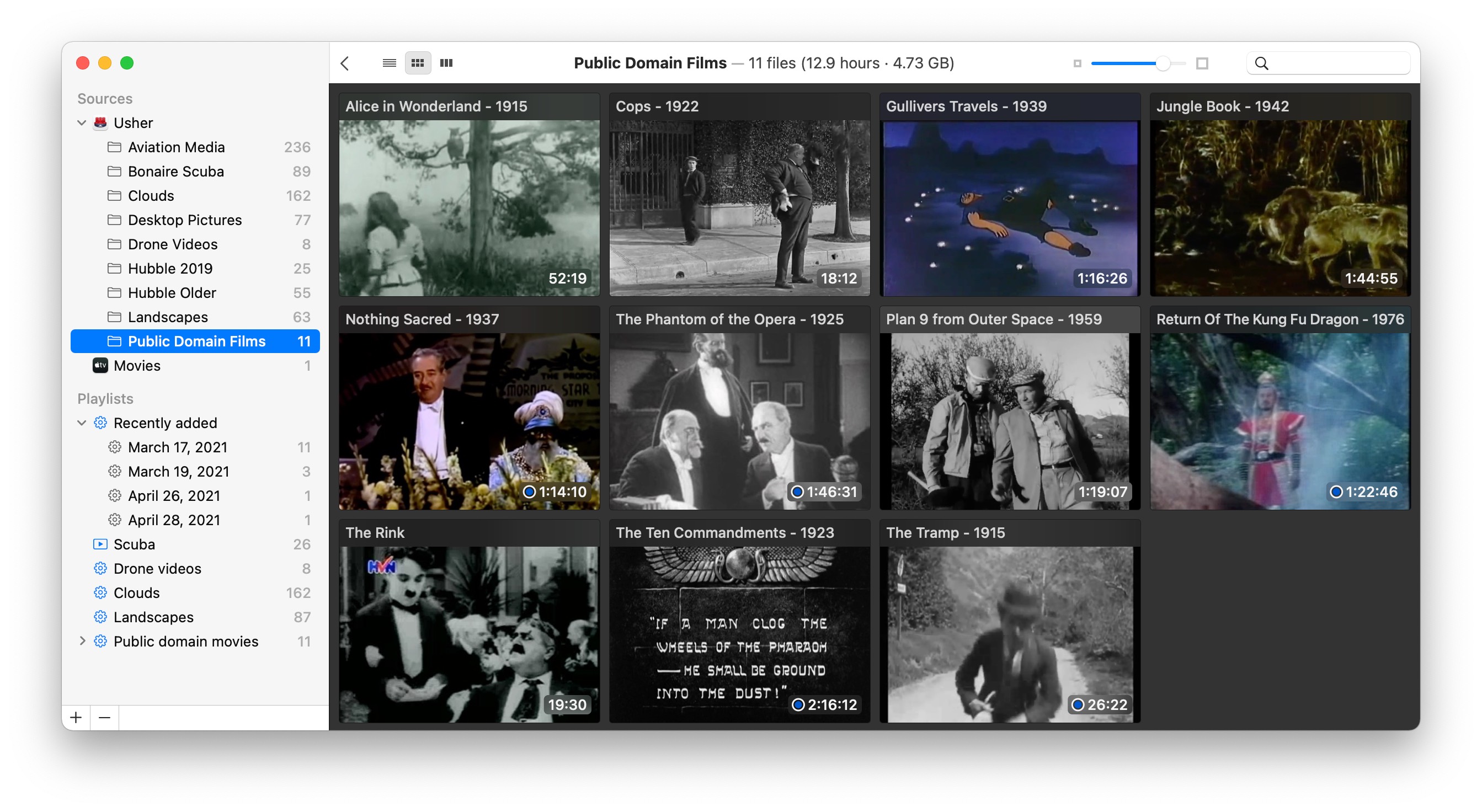
Within those three categories, though, there are tons of options. List view lets you add and remove columns from the view, and easily sort by any field. In both Preview and Cover modes, you can use the View > Layout menu to choose from a number of different ways to display your files. For example, the Waterfall layout varies image height but maintains a fixed image width:

If you're working with a small internal drive—or have a huge collection of media files—Usher's satellite libraries feature makes it seem as though media files stored on multiple drives were part of one large Usher library.
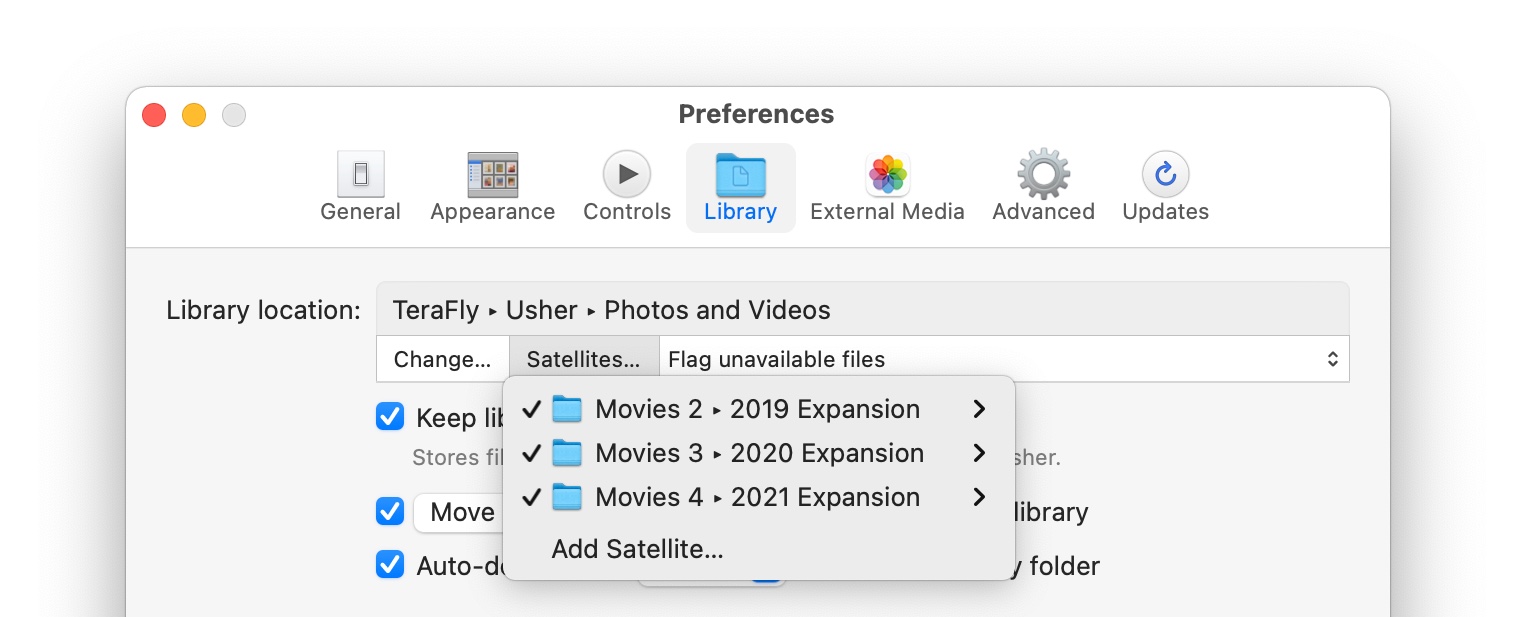
Add as many satellite libraries as you wish, and Usher will treat them all as an extension to your main library. This means you never have to worry about running out of drive space for your collection: Buy a new drive, add it to Usher as a satellite library, and you'll never again have to laboriously copy your entire collection to a new drive.
Usher also lets you create and use as many main libraries as you wish, making it easy to separate a work library from a home library, for instance.
Usher is a feature-rich app; we recommend you download the demo version and try it out to see what it can do. But in case you need some more convincing, here are just a few more of the things it can do…
Download the Usher free trial today and give it a test run!
 Many Tricks
 Play
Play