 Many Tricks
Moom, our newest app, takes a big step forward today to version 1.2, which introduces a couple of very useful new features and improves Moom’s interactions with a number of programs. The update is available now (or very shortly) for both direct (via in-app updating or from our site) and App Store (via the App Store application) customers .
So what’s new, and why is Moom cheating its way onto the grid? Well, the cheating bit refers to a new cheat sheet for keyboard users—the cheat sheet displays the currently-assigned shortcut keys. This feature is off by default, and can be enabled on the Keyboard tab of Moom’s Settings window. The grid bit refers to a very cool new feature for mouse users that lets you easily move and resize windows to custom sizes and positions. Also off by default, enable the grid (and set its size) via the Mouse tab of Moom’s Settings window. (If you want more information on how the grid works, read the help file for a detailed look at this cool new feature.)
Moom 1.2 also resolves an issue that was causing crashes in LibreOffice and OpenOffice. For the record, this crash was not due to anything Moom was doing, but rather, in how those apps respond to requests via Apple’s Accessibility API. We’ve found a good workaround, though, and Moom 1.2 now works properly with these apps.
There is another class of applications where Moom doesn’t work properly—as with LibreOffice/OpenOffice, this is due to problems with those programs and the Accessibility API. Moom now ignores these applications, so such problems are avoided. You can see a list of these programs, along with the other changes in Moom 1.2, on the release notes page.
If you haven’t updated yet, we strongly recommend you do so now—between the new features and the bug fixes, this is an important update for all Moom users.
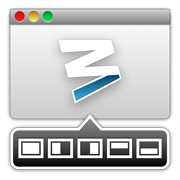 So what could possibly be more exciting than the
 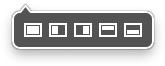 In mouse mode, Moom’s interface appears when your mouse enters a window’s green zoom button; click the desired window size/position, and the window moves there. Change your mind? Hover over the green button again, and click the arrow to return the window to its original size and location. It doesn’t get much simpler than that.
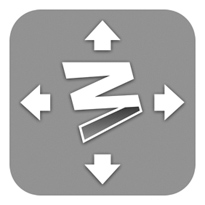 For even more power, though, try Moom in keyboard mode. You assign a global hot key, and which actions you’d like for various combinations of the arrow keys and modifier keys. Press the hot key, and the overlay image at right appears; you can then use the keys you’ve set up to move your windows around.