 So what could possibly be more exciting than the iPad 2 launch today? How about being informed that your brand-new application has been approved for sale in the App Store, during the actual iPad 2 launch? Yes, that’s exactly what happened to us today with our newest app.
So with apologies for stealing the limelight from iPad2 (right…), we’re thrilled to introduce Moom, Many Tricks’ newest tool to improve your productivity.
Moom simplifies a task that most of us do many times a day: moving and sizing windows. Whether it’s wanting a full-screen view while working on a project, or wanting to arrange a couple windows with each taking up half your screen, Moom makes those tasks as simple as a mouse click or keyboard shortcut.
 In mouse mode, Moom’s interface appears when your mouse enters a window’s green zoom button; click the desired window size/position, and the window moves there. Change your mind? Hover over the green button again, and click the arrow to return the window to its original size and location. It doesn’t get much simpler than that.
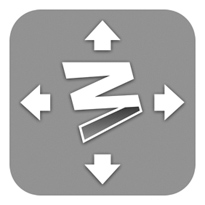 For even more power, though, try Moom in keyboard mode. You assign a global hot key, and which actions you’d like for various combinations of the arrow keys and modifier keys. Press the hot key, and the overlay image at right appears; you can then use the keys you’ve set up to move your windows around.
Using the keyboard, Moom also gains the ability to center a window; something you can’t do using Moom in mouse mode.
Moom is available directly on our site for $5, or via the App Store for $4.99. If you’d like to try Moom before buying, download the free demo from out site—you can “Moom” 100 windows before the trial expires, so that’ll give you a good sense for how it works.
If you have any questions about Moom, please post them here, or contact me directly; I’ll do my best to answer them.
 Many Tricks

 Today marks a milestone in Many Tricks’ history: the release of